Your host looks great in shot one. In shot two the jaw is different, in shot three the jacket changed color, and by shot five it's a different person. Viewers notice, even if they can't say why, and the whole video starts to feel fake. The fix isn't a magic prompt. It's a small system you set up once and reuse every time.
Why AI characters drift
Every generation is a fresh guess. If your prompt says "a rugged man in a jacket," the model invents a new rugged man each time. Text alone can't pin down a face.
Drift also builds inside a single clip. The longer the shot and the bigger the motion, the more the face wanders by the last second.
So consistency comes from two things: giving the model a picture to match, and keeping each shot short and simple.
Step 1: Write a locked character description
Before you generate anything, write the character down in a fixed block of text. This is the same block you'll paste into every prompt, word for word.
We keep these in a Claude Project so they never get retyped from memory. Here are our two Life Inside hosts as examples.
COLE MERCER: rugged man in his early 40s, short dark-brown hair, light stubble, weathered tan skin, steady grey-green eyes. Worn olive field jacket over a charcoal henley. Calm, grounded presence.
MAYA REID: woman in her early 30s, shoulder-length auburn hair, fair skin with light freckles, sharp hazel eyes. Charcoal tailored jacket over a cream crew-neck top. Curious, alert expression.
The point is repetition. "Olive field jacket" in one prompt and "green military coat" in the next will give you two different jackets.
Cole, the host guy, walking through the base in his jacket
COLE MERCER: rugged man in his early 40s, short dark-brown hair, light stubble, weathered tan skin, grey-green eyes, worn olive field jacket over a charcoal henley. He walks slowly down a steel corridor lit by cool overhead strips. Medium shot, eye level, 35mm lens.
Step 2: Generate one hero portrait
Next, make one clean, neutral image of each character. This becomes the source of truth.
Keep it boring on purpose. Even light, plain background, neutral expression, face clearly visible. Fancy lighting hides details you need later.
Head-and-shoulders portrait of [CHARACTER BLOCK]. Facing camera, neutral expression, mouth closed. Soft even studio light, plain mid-grey background. 85mm lens, sharp focus on eyes, natural skin texture. No text, no props.
Generate a batch and choose one. From here on, you compare everything against this image.
Step 3: Build a character sheet
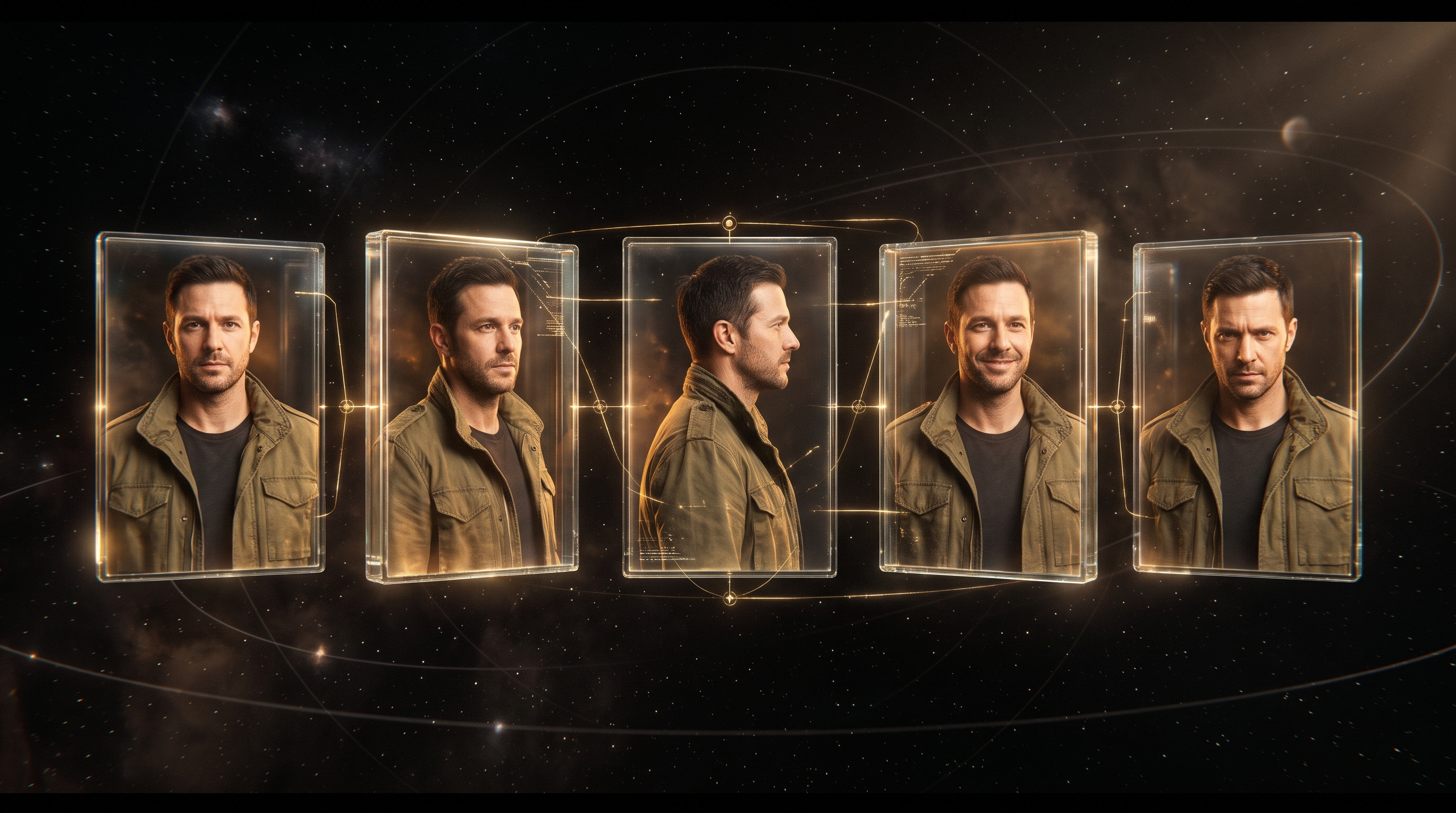
A single portrait only shows one angle. A character sheet shows the same person from several angles in one image, so the model learns the full head and outfit.
We built character sheets for both Cole and Maya. A good sheet includes front, three-quarter and profile views, plus one full-body shot for the outfit.
Character reference sheet of [CHARACTER BLOCK], using the attached portrait as the face reference. Four views on a plain light-grey background: front headshot, three-quarter headshot, side profile, and full-body standing pose. Same lighting in every view, same outfit, neutral expression. Clean layout, no text labels.
Check the sheet carefully. If the profile has a different nose than the front, regenerate. A flawed sheet copies its flaws into every clip.
Step 4: Save the character in your tool
Most current tools let you save a character so you don't re-upload references every time. The names differ.
In Higgsfield (as of October 2026), its guides describe Soul ID, which trains a character from photos, and Soul Cast, which defines an AI actor from a reference set. Cinema Studio also lets you place up to three characters in a scene. We saved Cole and Maya as reference characters with their sheets attached.
Google Flow approaches this through reference images: its "ingredients" feature combines character, object and style references into one video. Other tools call these elements or references.
Whatever the name, the habit is the same: one saved character per person, built from your sheet, reused in every shot.
Step 5: Lock the look of every shot
A saved character keeps the face. You still need to keep the world around it steady. We lock four things per episode.
| Lock | What it means | Example |
|---|---|---|
| Wardrobe | Same outfit words every prompt | "worn olive field jacket over a charcoal henley" |
| Lighting | One lighting phrase per location | "cool overhead strip lights, warm work lamps" |
| Lens | One or two lenses per scene | 35mm for walking, 85mm for close-ups |
| Grade | One color/mood phrase | "natural color, documentary realism" |
Write these into the episode's shot list so every prompt pulls from the same words.
Step 6: Image first, then animate
The most reliable route is to generate the still with the character, approve it, then animate that still. The video model only has to add motion, not invent a face.
Higgsfield's own workflow guidance describes the same idea: approve a hero frame, then animate from it.
MAYA REID walks into the underwater habitat, looks around amazed, turns to camera and starts talking, camera orbits her
Start frame: approved still of MAYA REID inside the habitat airlock. She turns her head slowly toward the porthole and smiles slightly. Static camera, medium shot. Keep face, hair and jacket exactly as in the start frame.
The weak prompt stacks four actions and a camera orbit. Each one is a chance for the face to drift.
Step 7: Keep talking shots short
Talking shots are where consistency breaks most often, because the mouth and jaw are moving the whole time.
Here's what we learned on Life Inside. Seedance 2.0 was unreliable for precise lip-sync, so Wan 2.7 became our standard for every talking shot. Seedance now only does silent B-roll.
Three habits cut lip-sync drift for us:
- Shorter talking shots, split at natural pauses in the script.
- Video length matched to the audio length.
- Higher resolution for talking shots.
A consistency checklist
Run this before you render a batch.
- Character block pasted word for word, not retyped
- Saved character or sheet attached as reference
- Start frame is an approved still
- One action, one camera move
- Wardrobe, lighting, lens and grade match the shot list
- Talking shots short, length matched to audio
When it still drifts
Sometimes a clip is 90% right and the face slips at the end. Don't regenerate the whole scene.
- Trim the clip before the drift starts.
- Cut to B-roll and come back on a fresh shot.
- Regenerate with less motion: swap an orbit for a static shot or slow push-in.
- Use a tighter crop. A medium shot hides small differences that a close-up exposes.
What's next
Consistency gets harder with two people in a scene. See Two-Host AI Shows for how we handle Cole and Maya together. If you're just starting, begin with Higgsfield for Beginners.